
How to Install IPTV on Windows PC & Mac
Watch live TV, sports packages, and movies on your laptop or desktop computer using dedicated player software or VLC media player.
Before you start
- Windows PC or Apple Mac computer
- 8K IPTV Strong subscription credentials
Step by step
-
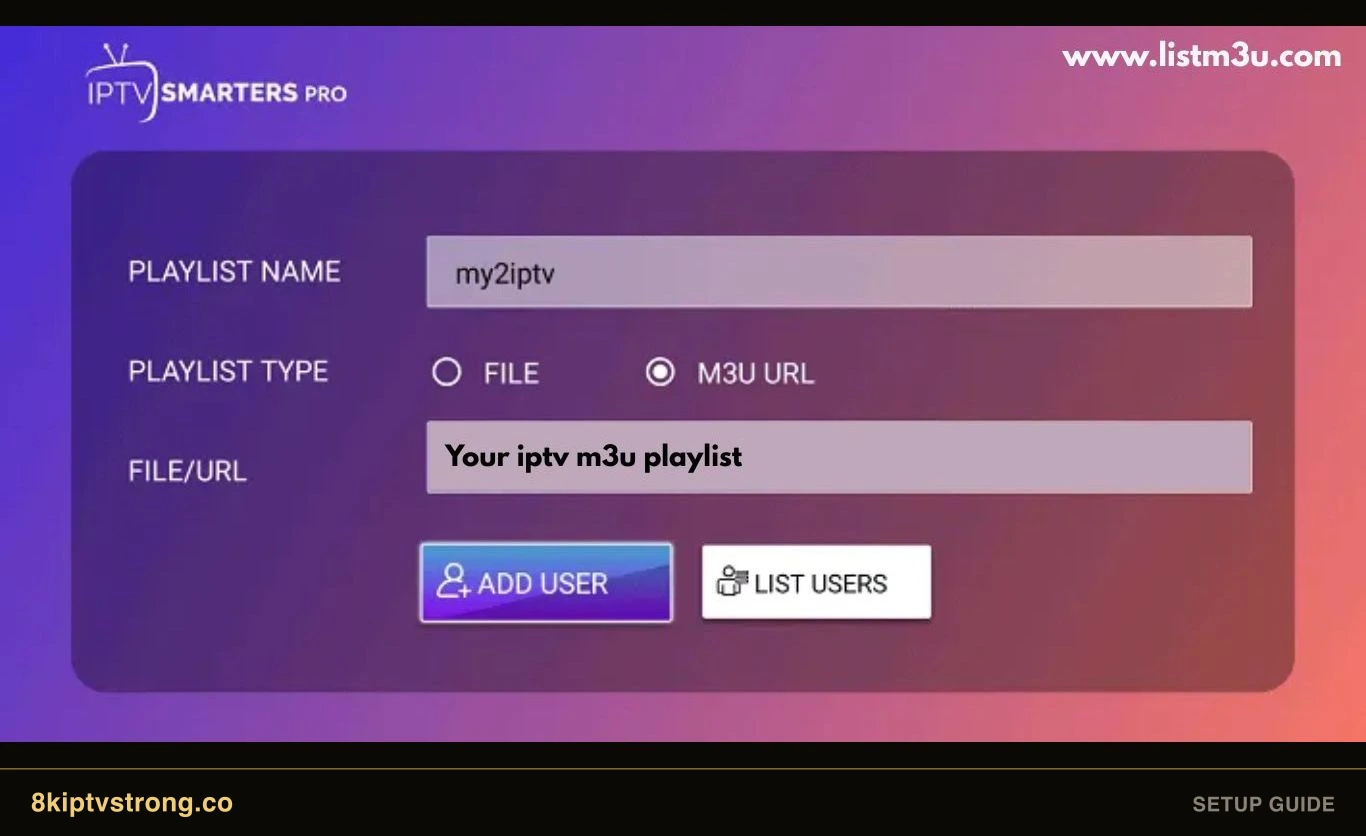
Download IPTV Smarters Desktop app
Visit the official IPTV Smarters website or download the verified Windows (.exe) or Mac (.dmg) installer.
-
Run the installer
Double-click the downloaded setup file and follow the on-screen instructions to install the application on your computer.
-
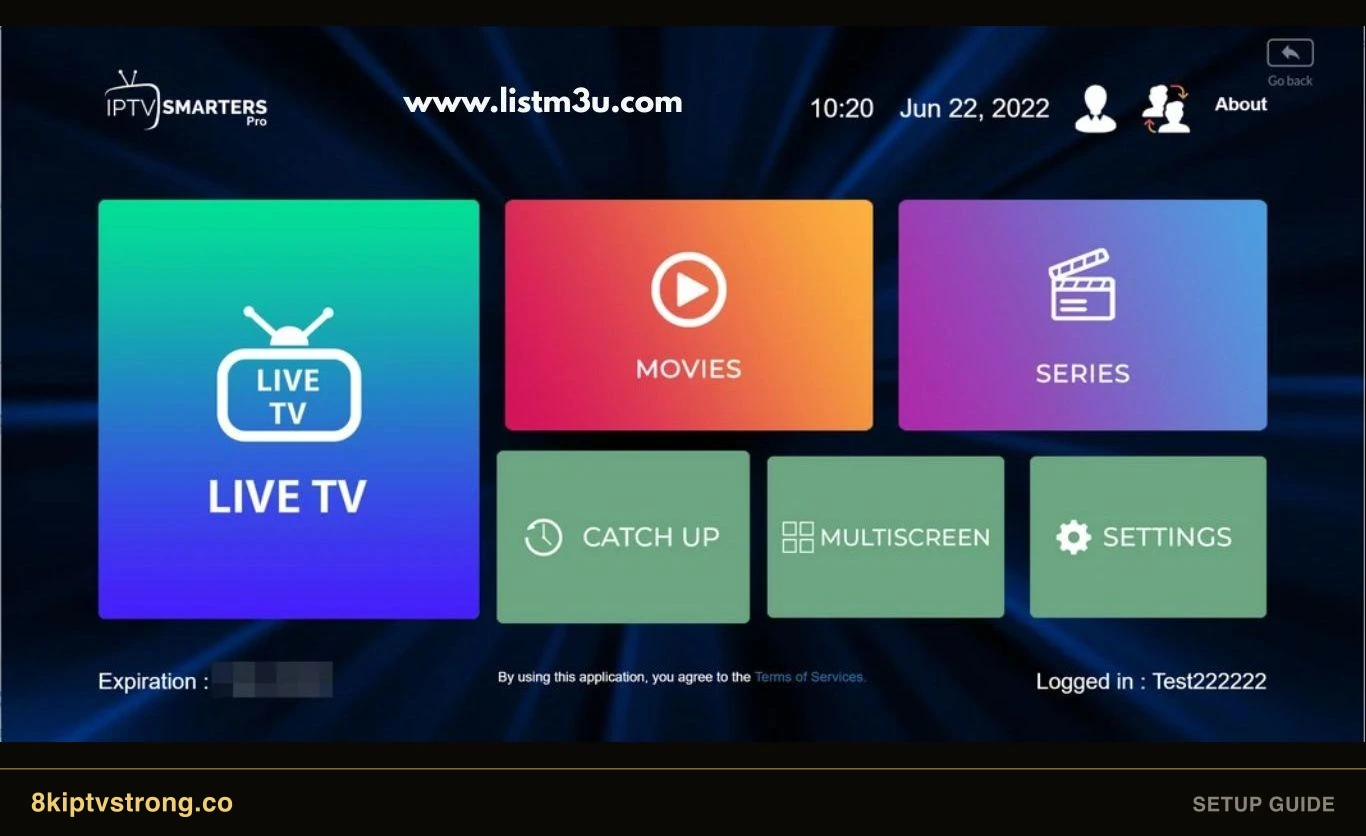
Launch the application
Open IPTV Smarters from your desktop shortcut or applications folder.
-
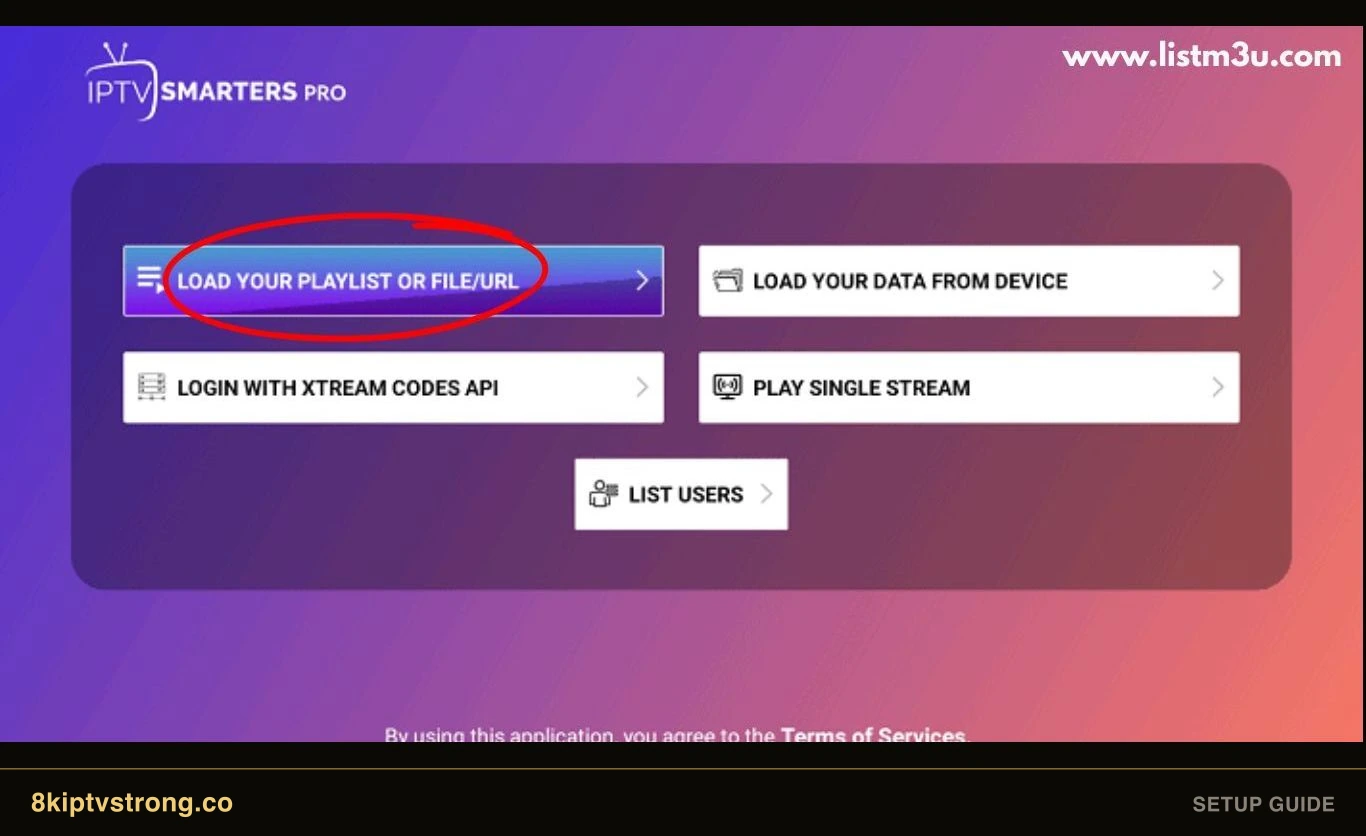
Enter Xtream Codes API login
Choose "Login with Xtream Codes API" and enter your server URL, username, and password.
-
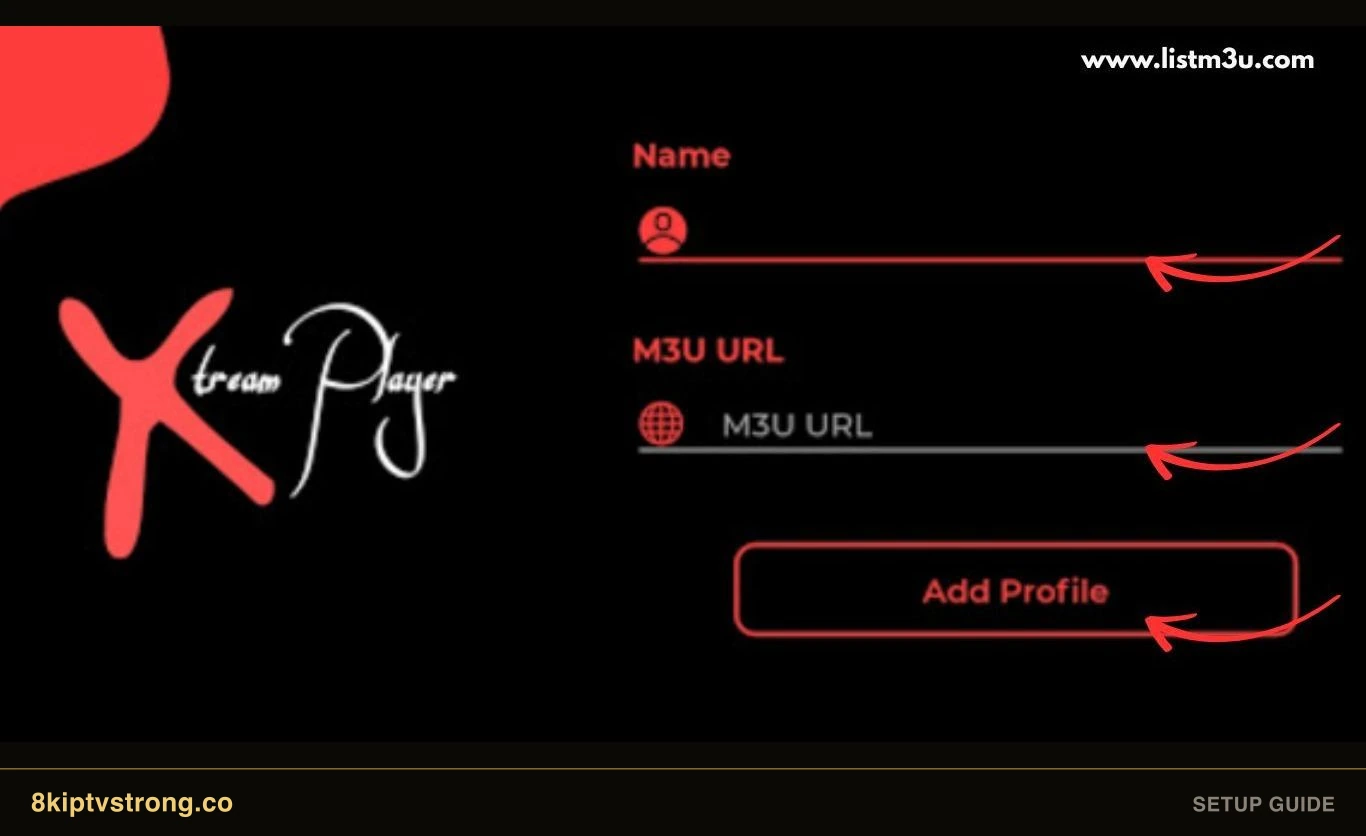
Load channels and stream
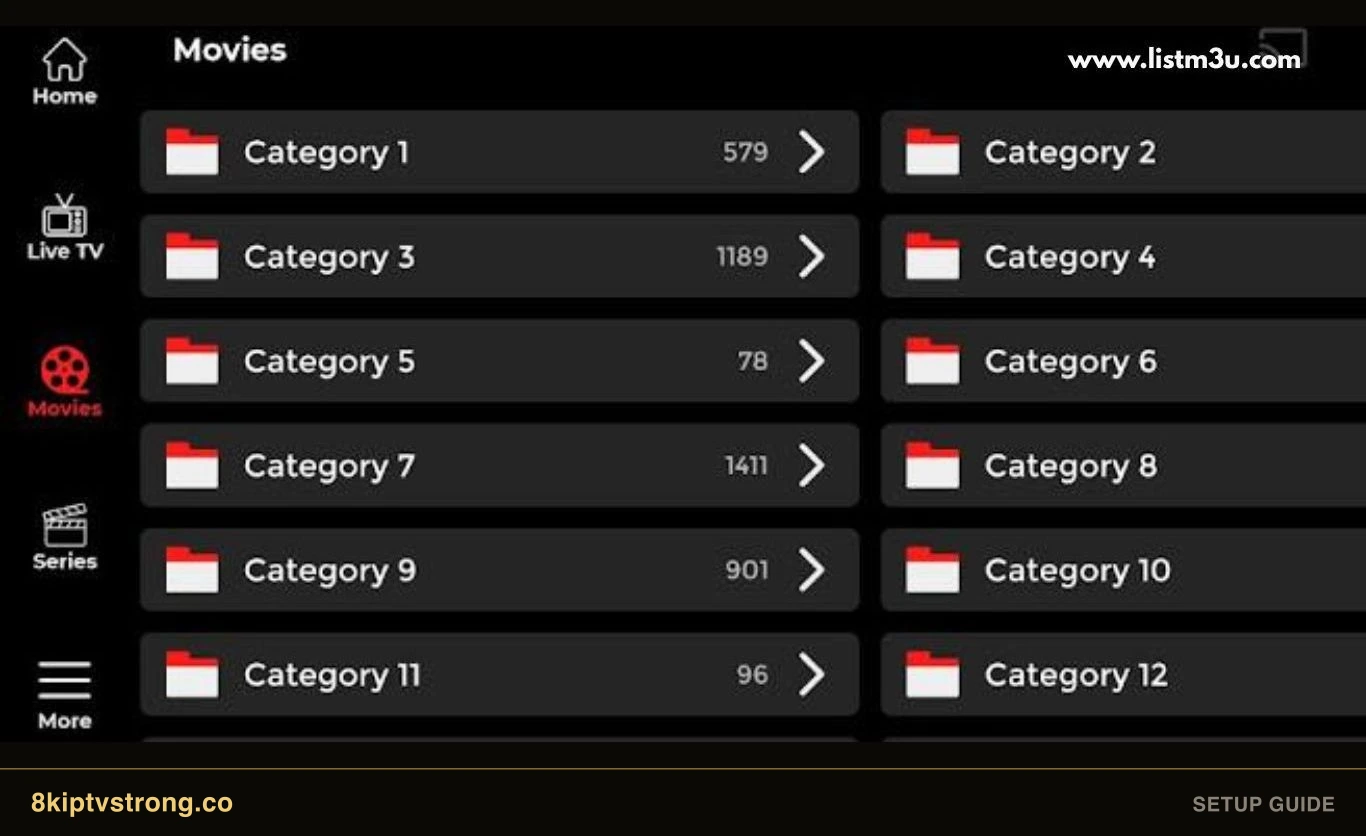
Click Add User and browse live TV, movies, and sports on your computer screen.
Windows PC & Mac setup not working?
These are the failures that account for almost every support message, listed in the order they turn out to be the cause.
-
Windows Defender flags the installer
Click "More info" and then "Run anyway". Our installer is safe and verified.
-
VLC loops through channels without playing
In VLC Preferences > All > Input/Codecs, increase network caching to 1500 ms.
Make it work better
- Use VLC or IINA (Mac) if you prefer a lightweight media player without an app wrapper.
- IPTV Smarters Desktop gives you full TV guide (EPG) functionality and category sorting.
Common questions
Can I use VLC Media Player instead?
Yes, you can open an M3U playlist link directly in VLC by going to Media > Open Network Stream.