
How to Install IPTV on Android Phone, Tablet & TV Box
Install and configure our recommended IPTV apps on Android phones, tablets, Nvidia Shield, and Google TV devices in minutes.
Before you start
- Android device or Android TV / Google TV box
- Your 8K IPTV Strong subscription details
Step by step
-
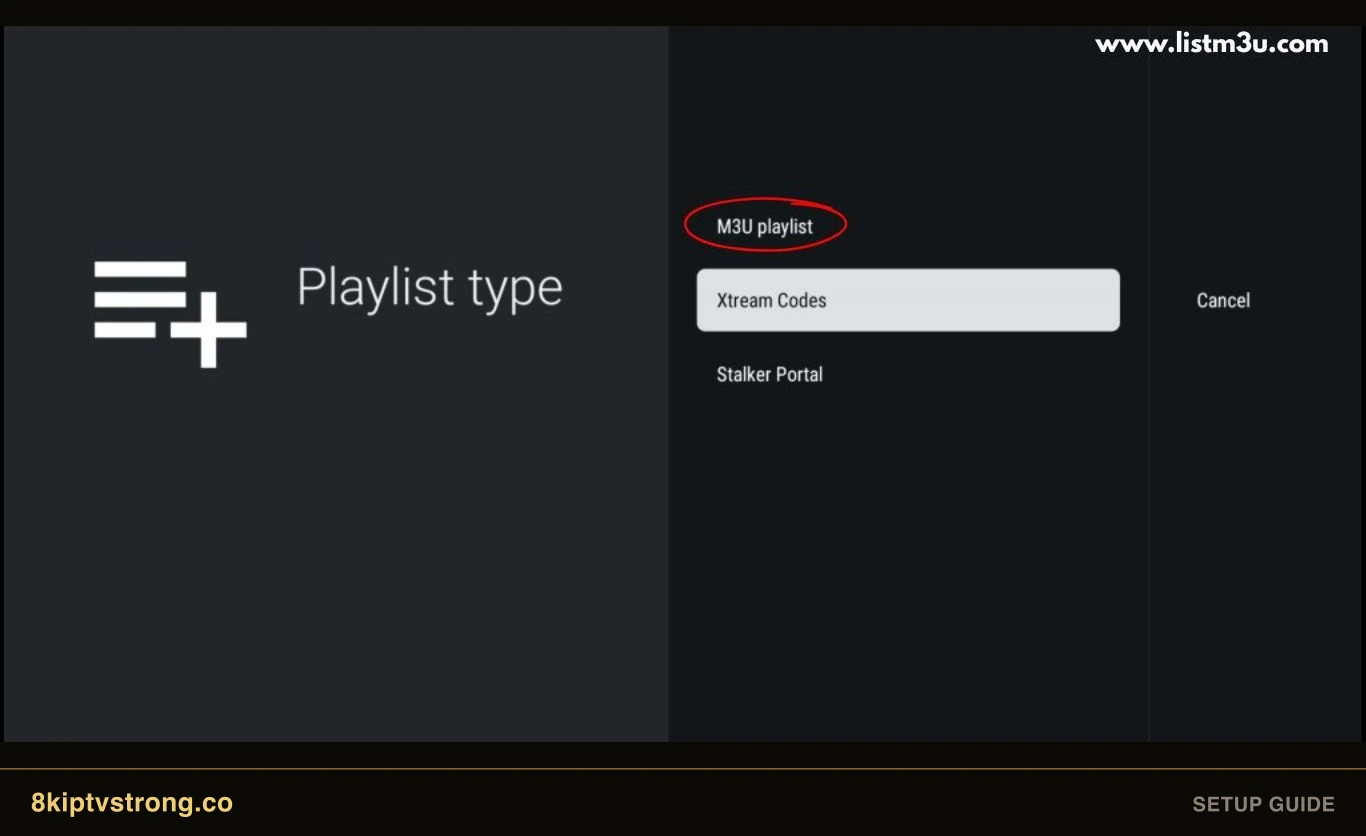
Open Google Play Store
Navigate to the Google Play Store on your Android device or TV box and search for "IPTV Smarters Pro" or "XCIPTV".
-
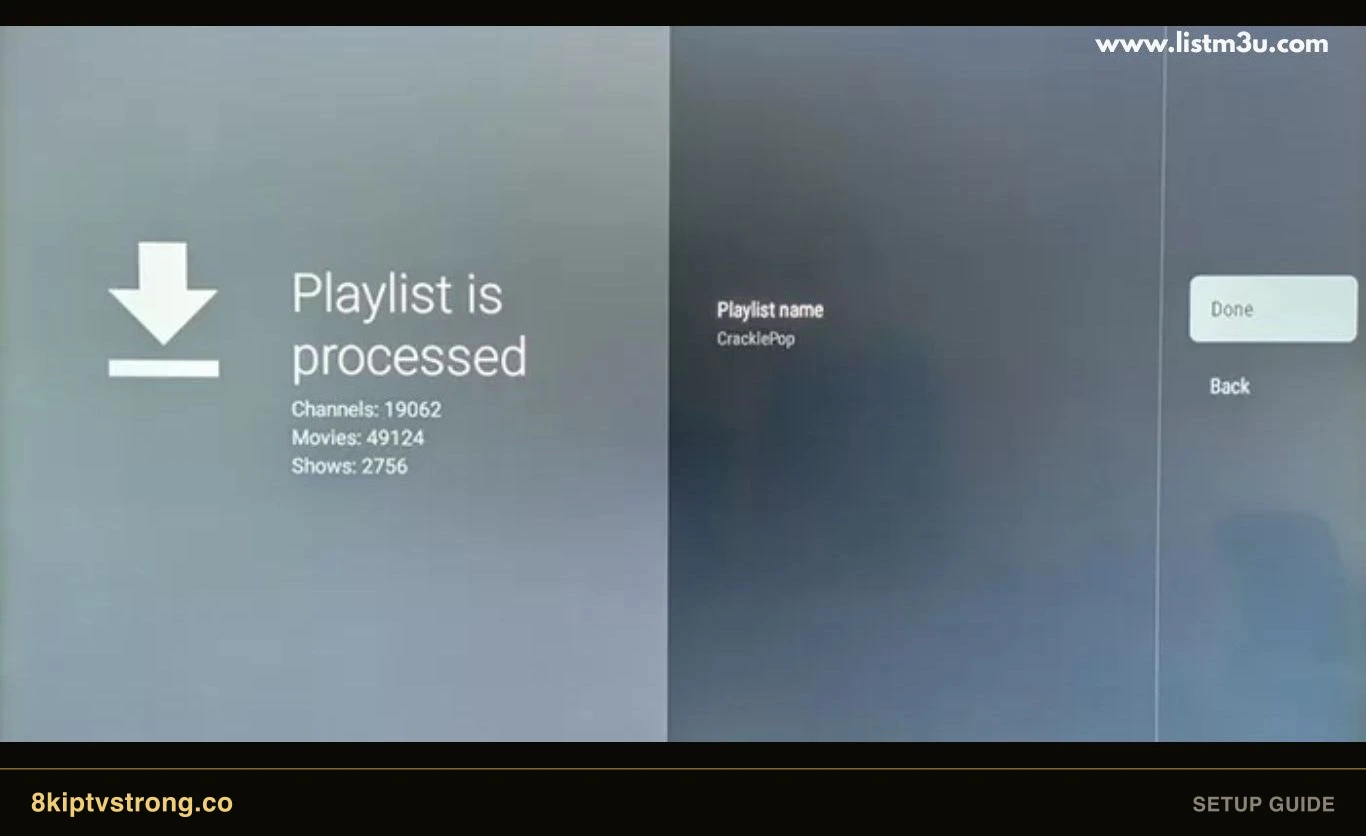
Install the IPTV app
Tap Install and wait for the application to download and install on your device.
-
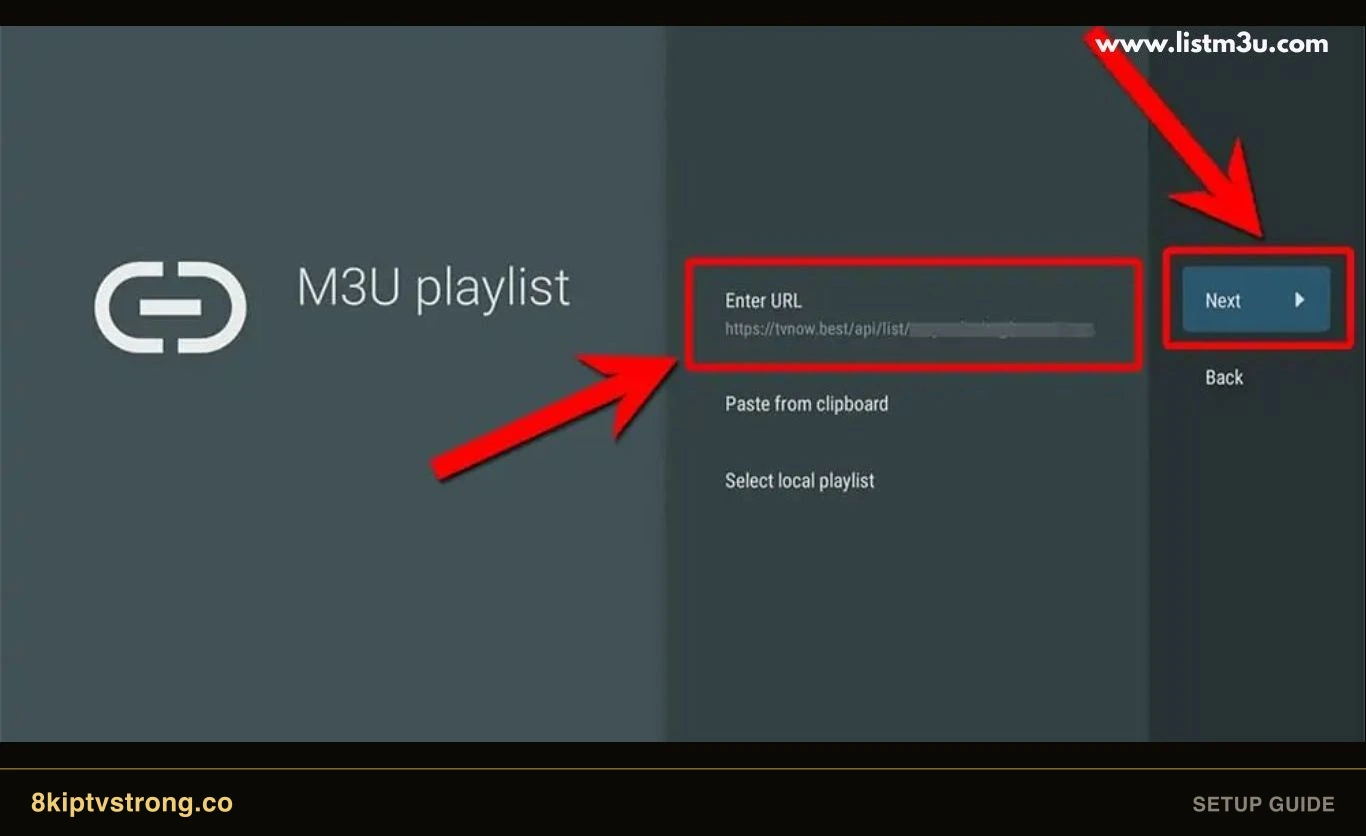
Open app and choose Xtream Codes
Open the app from your app drawer, accept the agreement, and select "Login with Xtream Codes API".
-
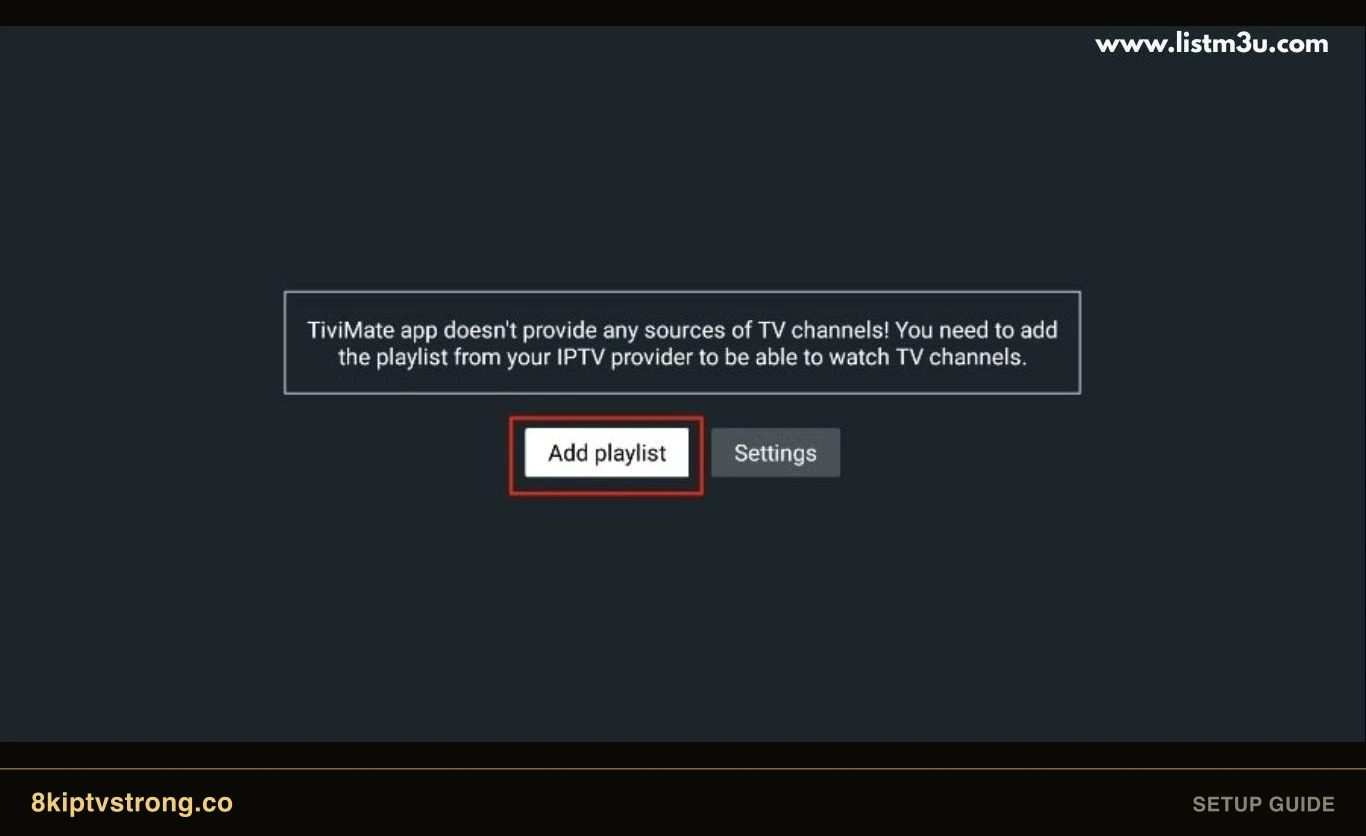
Input your portal details
Enter the server URL, username, and password provided in your email confirmation.
-
Enjoy live channels and VOD
Click Add User to load your complete channel list, movies, and series.
Android & Google TV setup not working?
These are the failures that account for almost every support message, listed in the order they turn out to be the cause.
-
Stream stops or freezes frequently
Clear the app cache in Android Settings > Apps > IPTV Player > Clear Cache, or adjust buffer size in the player settings.
-
App crashes upon opening categories
Ensure your device has at least 500 MB of free internal storage to download and cache channel metadata.
Make it work better
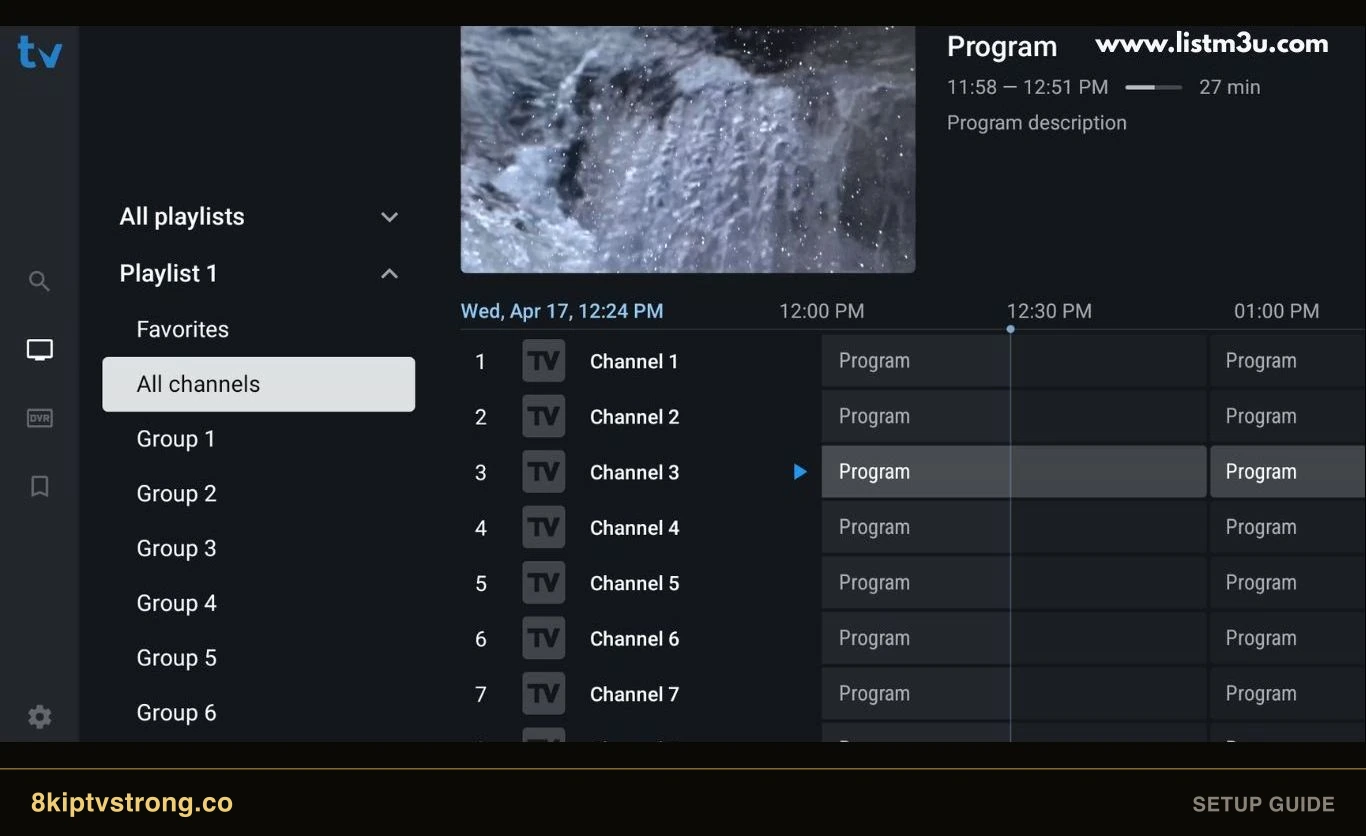
- For Android TV and Nvidia Shield, TiviMate offers the most native and responsive interface.
- Set stream format to HLS or MPEG-TS depending on your network conditions.
Common questions
Can I use TiviMate on Android TV?
Yes, TiviMate is one of the best players for Android TV and Fire TV. Simply enter your Xtream Codes or M3U playlist in TiviMate.