
IPTV Buffering: 9 Fixes That Actually Work
Nine fixes in order to stop IPTV buffering: measure throughput at the device, change DNS, disable Wi-Fi power saving and clear a stale playlist.
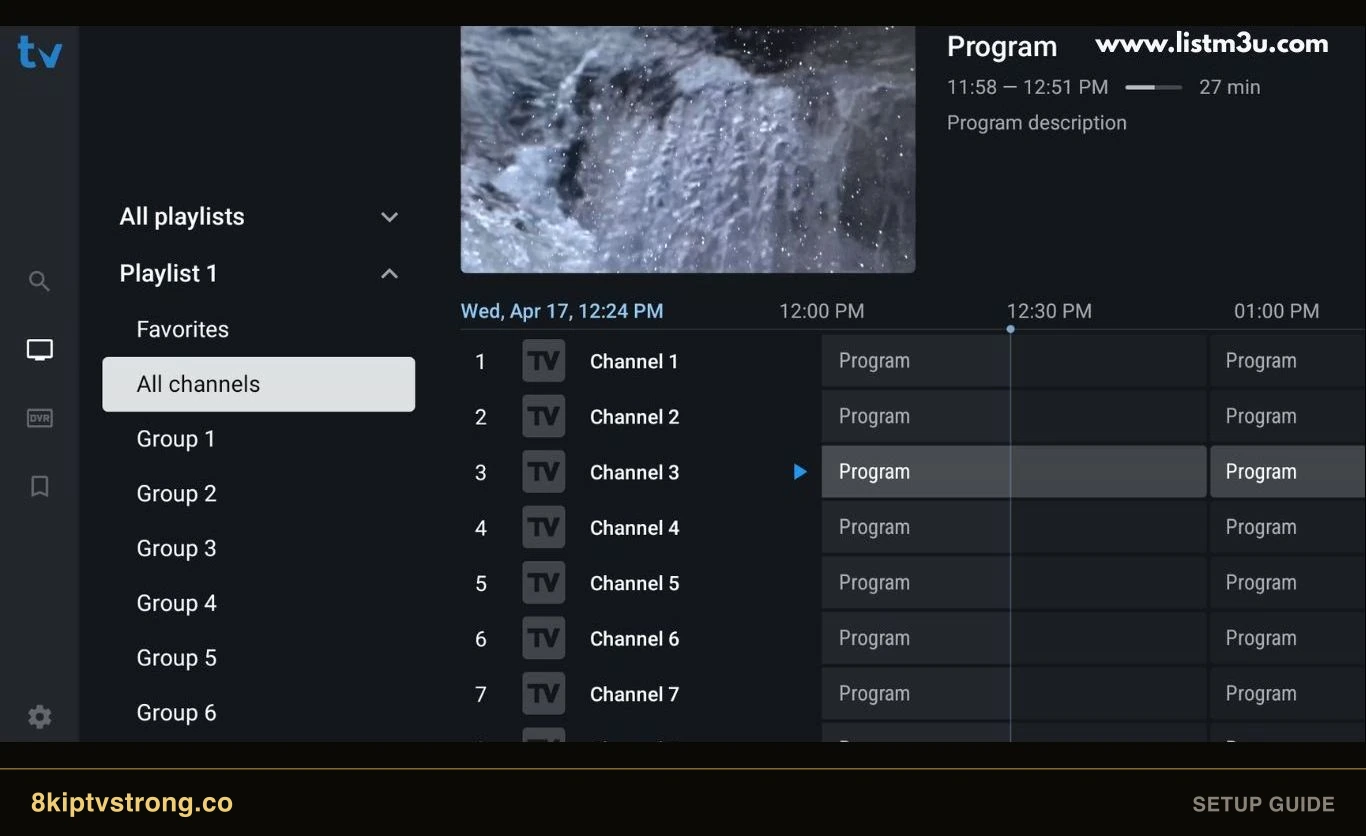
Buffering is the single most common complaint about any IPTV service, and in most cases it is not the service. It is one of four things: your throughput, your Wi-Fi, your DNS, or a device that cannot decode the stream fast enough.
Work through these nine fixes in order. Each one takes a couple of minutes, and the first five solve the large majority of cases.
1. Measure the speed at the device, not at the router
Speed tests run on a phone next to the router tell you nothing about the TV in the next room.
Run the test on the device that buffers:
- Smart TV: most players have a built-in speed test in settings
- Fire Stick: install a speed test app from the Amazon store
- Android box: any speed test app
You need a stable 10 Mbps for HD, 25 Mbps for 4K and around 50 Mbps for 8K. Stability matters more than the peak number: a connection that swings between 80 and 4 Mbps will buffer constantly even though the average looks fine.
2. Restart the device properly, not just the app
A TV that has been on standby for three weeks has a full, fragmented network stack. Pull the power plug out, wait thirty seconds, plug it back in. This clears more buffering complaints than any setting change.
3. Switch off the 2.4 GHz band
The 2.4 GHz band is shared with every neighbour’s router, every baby monitor and every microwave. If your TV supports 5 GHz, use it — and if it does not, this alone is a good reason to add a streaming stick.
The most effective version of this fix is a cable. A network cable from the router to the TV removes Wi-Fi from the equation completely.
4. Turn off Wi-Fi power saving on the device
This is a hidden setting that catches people out constantly, and it is one level down from a menu nobody opens.
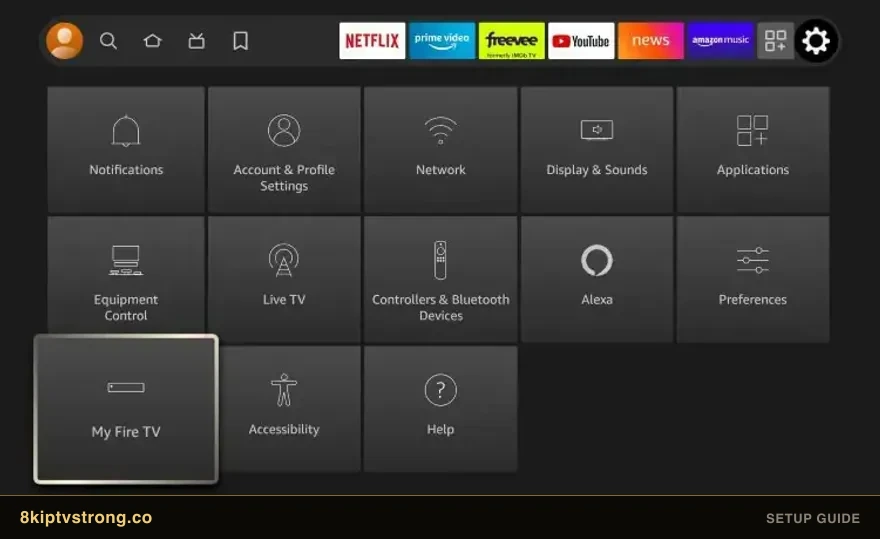
- Android TV / Google TV: Settings → Network → Wi-Fi → your network → disable “Wi-Fi power saving” or “Turn off Wi-Fi when asleep”
- Fire TV: Settings → Network → disable “Wi-Fi power saving”
- Some LG sets: Settings → Connection → Wi-Fi → Advanced → disable power saving
With power saving on, the device throttles its Wi-Fi radio between segments and the stream stalls.
5. Change your DNS
A slow or over-filtered DNS resolver delays the connection to each stream. On the device, set DNS manually to a fast public resolver:
- Primary:
1.1.1.1 - Secondary:
8.8.8.8
You can also set this on the router so every device benefits. Some home routers ship with ISP DNS filters that block streaming hosts outright, which shows up as channels that load but never play.
6. Reduce the stream quality for one test
If the plan allows it, drop the stream resolution from 4K to FHD for a single channel. If the buffering disappears, you have confirmed a bandwidth ceiling rather than a server problem.
This is a diagnostic step, not a permanent fix — but it tells you exactly which of the two you are dealing with.
7. Check whether it is one channel or all of them
- One channel buffers, others are fine → that feed is having a bad day. Report it with the channel name and the time; it gets switched to a different source.
- Everything buffers at the same time every evening → peak-hour congestion on your ISP, or a saturated Wi-Fi band. Fix 3 and fix 5 help here.
- Everything buffers constantly → account, DNS, or a device too slow to decode the codec.
8. Clear the player cache
Players cache channel logos, the guide and thumbnails. When that cache grows large, low-storage devices slow down badly.
- Android-based devices: Settings → Apps → your IPTV player → Storage → Clear cache (do not clear data, or you will lose the playlist)
- Smart TV apps: reinstall the app; the Tizen cache is not exposed to users
After a cache clear the player rebuilds its list, and the guide takes a minute to reappear.
9. Stop other traffic on the network
Cloud backups, game downloads and 4K streams on other TVs compete for the same uplink. If two people watch 4K at once on a 50 Mbps line, something has to give.
Most routers let you give the TV’s MAC address priority, which is worth configuring once.
How to tell whether it is the service
Before you open a ticket, put the same account on a second device — a phone on mobile data is ideal, because it leaves your home network out of the test entirely.
If the problem survives all nine fixes, gather this before contacting support:
- The exact time it happened, including your time zone
- Which channels are affected — one, a category, or all
- The speed test result taken on the buffering device
- The device model and the player app name
- Whether the same account buffers on a different device on a different network
With those five details, a good provider can tell within minutes whether the fault is on the server side, and fix it.
IPTV buffering — quick answers
Why does IPTV buffer at the same time every night?
That pattern is peak-hour congestion: your ISP’s local segment is saturated, usually between 19:00 and 23:00. Fixes 3, 5 and 9 are the ones that help. It is rarely the IPTV server, because the same stream would stall at other times too.
Why does my Firestick buffer but my phone does not?
The stick is usually on 2.4 GHz Wi-Fi with power saving enabled, and it sits behind a television that blocks the signal. Move it to the 5 GHz band, disable Wi-Fi power saving, and use the supplied power adapter rather than the TV’s USB port.
Does a VPN cause buffering?
It can. A VPN adds a hop and often caps throughput well below what 4K needs. Disable it for a test — if the buffering stops, the VPN is the ceiling, not the subscription.
Is buffering caused by too many devices on one account?
Yes, on a single-connection plan. A second simultaneous stream will not error out on every player; it often shows up as both devices stuttering instead.
Keep going
If your playlist has never loaded properly in the first place, the problem is usually the link rather than the network — start with M3U vs Xtream Codes, and check the device-specific steps in the setup guides.
- #buffering
- #troubleshooting
- #wifi
- #dns
- #firestick