Follow these simple steps to install and configure IPTV Smarters Player on your Apple devices. This guide works for iPhone, iPad, and Mac.
Order NowInstallation Steps for iOS Devices
Step 1: Download IPTV Smarters App
Start by downloading the IPTV Smarters app from the Apple Store through this URL:
https://itunes.apple.com/us/app/iptv-smarters-player/id1383614816
Or you can search for it on the App Store
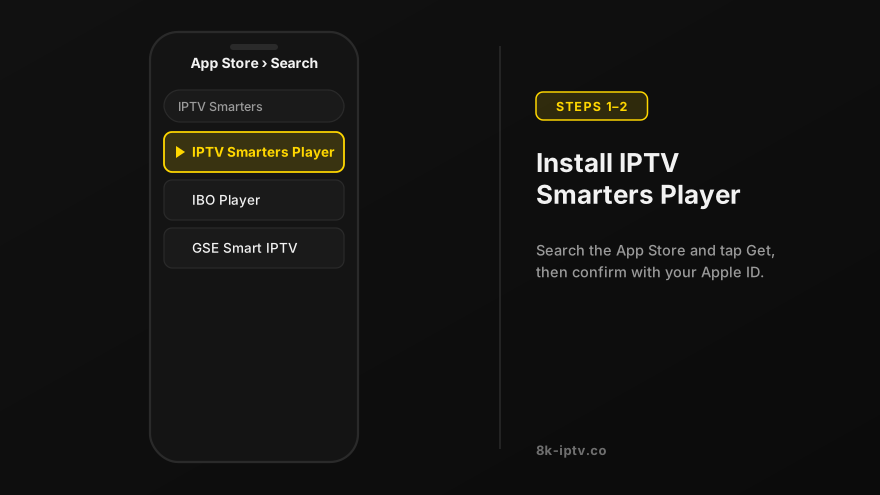
Step 2: Install the App
Install the app on your iOS device.
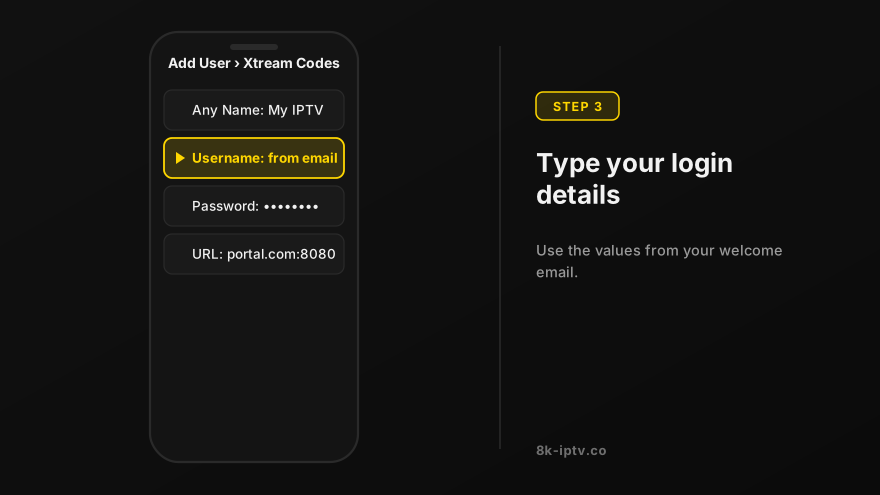
Step 3: Enter Login Details
Enter the login details that we have provided you after you get a subscription with us.
Now click on "ADD USER" to proceed to the next section.

Step 4: Wait for Loading
Wait some seconds for the app to load your subscription.

Step 5: Access Live TV
Now tap on the "Live TV" icon to open your channel list.

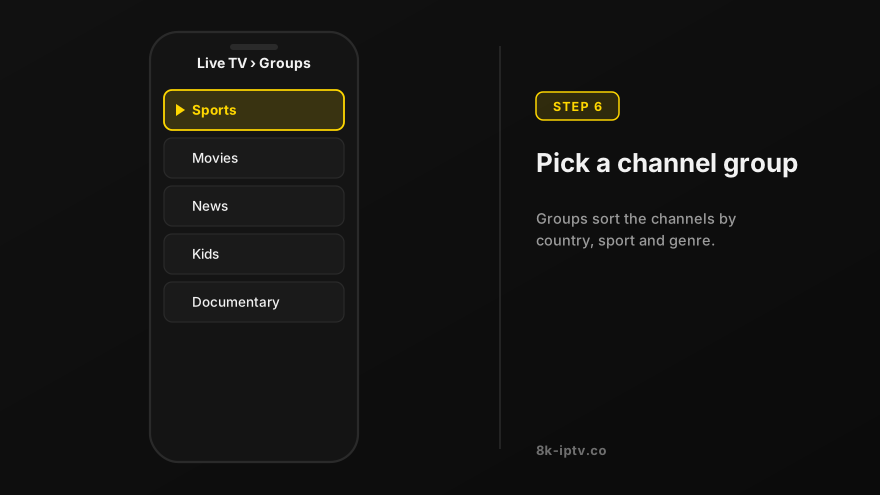
Step 6: Select Channel Group
Now you must select the channel group that you want to watch and proceed to the next section.
Step 7: Watch Your Channel
Now you must click on the channel name and then double-click on the small screen to turn into full screen as the final step.

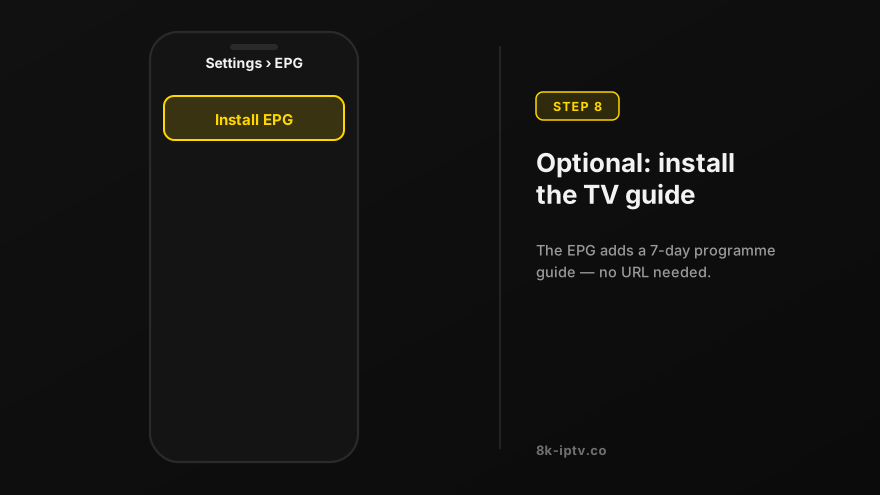
Step 8: Install EPG (Optional)
To add EPG no need to add any EPG URL, just click on "Install EPG". Done!
Installation for Mac
MAC Method
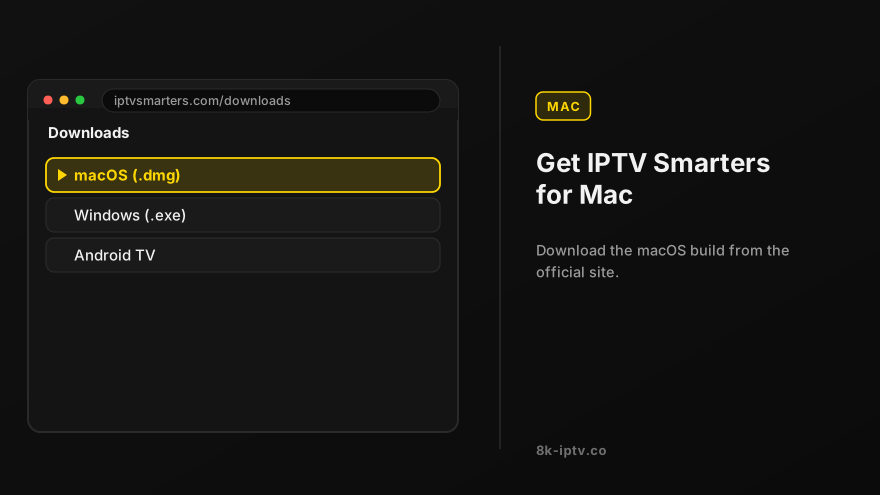
Download the IPTV Smarters app through this URL:
https://www.iptvsmarters.com/download?download=mac
Follow the same steps as iOS after installation.
Before You Start on an Apple Device
What You Need
An iPhone, iPad, Apple TV or Mac running iOS 13 or later, and the login details from your welcome message — either an M3U playlist URL or Xtream Codes credentials (host, username and password). Nothing else is required: no VPN, no player purchase and no extra hardware, because the 8K IPTV app of your choice connects directly to our servers.
Which App to Use on Each Apple Device
On iPhone and iPad, Smarters Player Lite is the fastest option and installs free from the App Store. On Apple TV there is a separate tvOS build — search the App Store on the Apple TV itself rather than trusting the iPhone listing, or simply AirPlay from your phone (see below). On Mac, use the desktop download from the official IPTV Smarters site, and follow the same login steps as iOS once it is installed.
If you would rather use the player we recommend, install 8K Player VIP instead — it is included free with every subscription and handles 4K streams with noticeably less buffering. Both apps read the same credentials, so you can test them side by side at no cost.
AirPlay from iPhone or iPad to Apple TV
Mirroring Your Stream to a Bigger Screen
Open the stream in your IPTV app, then swipe down from the top-right corner to open Control Centre and tap Screen Mirroring, followed by your Apple TV. Both devices must be on the same Wi-Fi network, and the phone or tablet must stay awake and connected for the stream to continue — leaving the app or locking the screen ends the mirroring session.
AirPlay is perfect for testing and for watching on a TV without installing anything, but it needs a strong Wi-Fi signal because every frame passes through the phone. For everyday viewing, installing the tvOS app directly on the Apple TV gives a more stable picture at 4K.
iOS Problems and Fixes
The App Does Not Appear in the App Store
IPTV players are removed and re-listed by region, so an app that is visible in one country can be hidden in another. If Smarters Player Lite or 8K Player VIP is missing where you are, look for another player that accepts M3U or Xtream Codes — GSE Smart IPTV is a common alternative on iOS — and use the same login details. Nothing about your subscription needs to change.
Login Rejected or the Playlist Will Not Load
Copying credentials from WhatsApp or email can carry a hidden space at the end, which iOS players reject without explaining why. Retype the username and password by hand, remember they are case-sensitive, and if you were sent a long M3U link, check that the app did not truncate it when pasting. When both entry methods fail, the line itself may still be activating — message us on WhatsApp and we will check its status for you.
Streams Stop When You Lock the Screen
iOS suspends apps that go to the background, so a locked iPhone stops playback. For audio-only listening, enable background audio in the player's settings if it offers it; for video, keep the app in focus or AirPlay to an Apple TV and lock the phone instead.
Buffering on 4G or 5G
Mobile data fluctuates far more than a fixed line, and one HD stream needs about 10 Mbps (25 Mbps for 4K) sustained. If a programme stutters on cellular, switch to Wi-Fi, or choose the lower-quality version of the same channel from the channel list. When only a single channel freezes on a fast connection, tell our support team the channel name — that points at the feed rather than your device.
Renewing and Reinstalling Later
Your login details stay the same when the subscription is renewed, so nothing has to be re-entered. If you delete the app or move to a new iPhone or iPad, simply add the user again with the same details. Because a single-device plan allows one stream at a time, make sure an older device is not still streaming before you start watching on the new one.
Note: If you still have issues, please take a photo of your Mac address and device key with your phone and send it to our team via EMAIL: contact@8k-iptv.com or contact us via WhatsApp.
Related Setup Guides
Guides for the devices closest to this one: 8K Player VIP on Fire TV and Android, IPTV Smarters Pro on Smart TV, Android, iOS and Fire Stick, Smart TV setup for Samsung, LG and Android TV, Windows PC setup with Smarters or VLC. If your device is not listed, start with the full IPTV setup guide, which links to all of them.