IPTV Smarters is an incredible video streaming player which is developed especially for end-users that want to be provided with the facility to watch live TV, VOD, Series and TV Catchup on their Smart TV. This video player app is easy to use and yet highly efficient with a powerful player, attractive and very impressive layout and most importantly user-friendly.
Our plans have everything you need to take your TV experience to the next level without hidden fees.
Order NowHow to Install IPTV Smarters Pro on Smart TV Samsung/LG
3 Minutes Setup Guide
IPTV Smarters is an incredible video streaming player which is developed especially for end-users that want to be provided with the facility to watch live TV, VOD, Series and TV Catchup on their Smart TV. This video player app is easy to use and yet highly efficient with a powerful player, attractive and very impressive layout and most importantly user-friendly.
Our plans have everything you need to take your TV experience to the next level without hidden fees.
How to Install IPTV Smarters Pro on Smart TV Samsung/LG
3 Minutes Setup Guide
IPTV Smarters is an incredible video streaming player which is developed especially for end-users that want to be provided with the facility to watch live TV, VOD, Series and TV Catchup on their Smart TV. This video player app is easy to use and yet highly efficient with a powerful player, attractive and very impressive layout and most importantly user-friendly.
Our plans have everything you need to take your TV experience to the next level without hidden fees.
For Samsung Smart TV
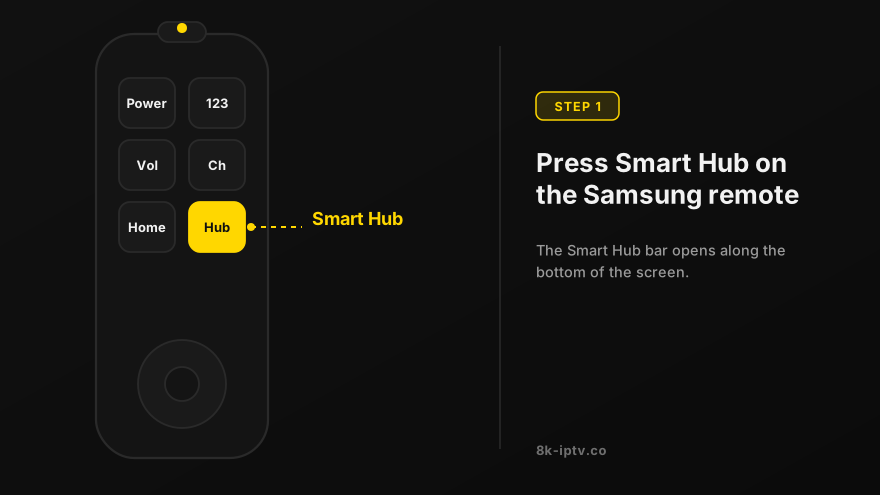
Step 1: Press the Smart Hub button from your remote.
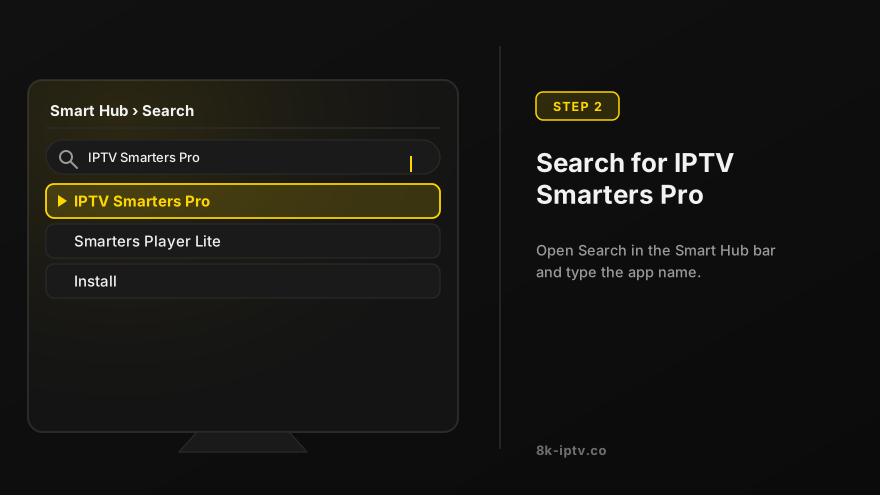
Step 2: Search for the IPTV Smarters Pro to install.
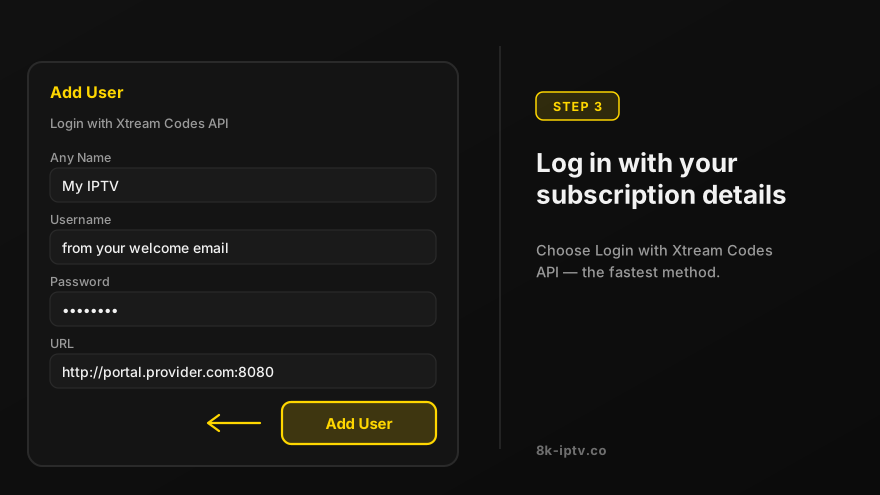
Step 3: Log in the Application with your subscription details i.e. Username, Password, Portal URL.
For LG Smart TV
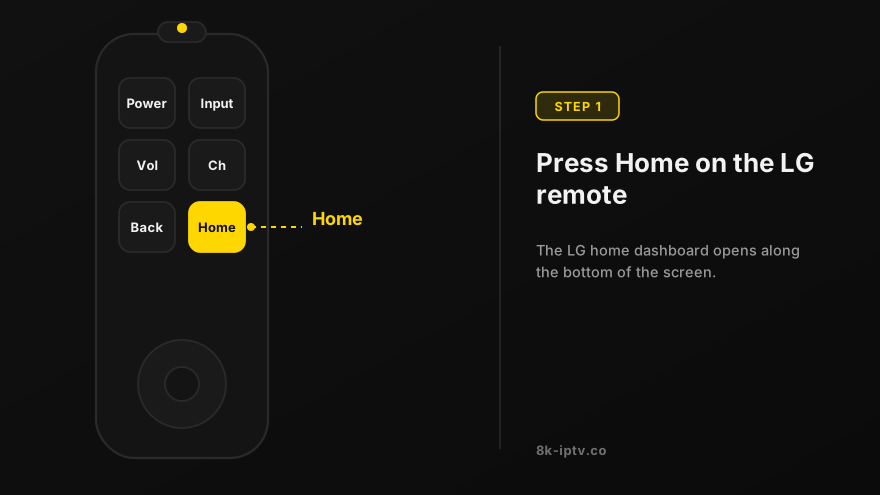
Step 1: Press the Home button on the remote & Go to LG Content Store.
Step 2: Search for the IPTV Smarters Pro to install.
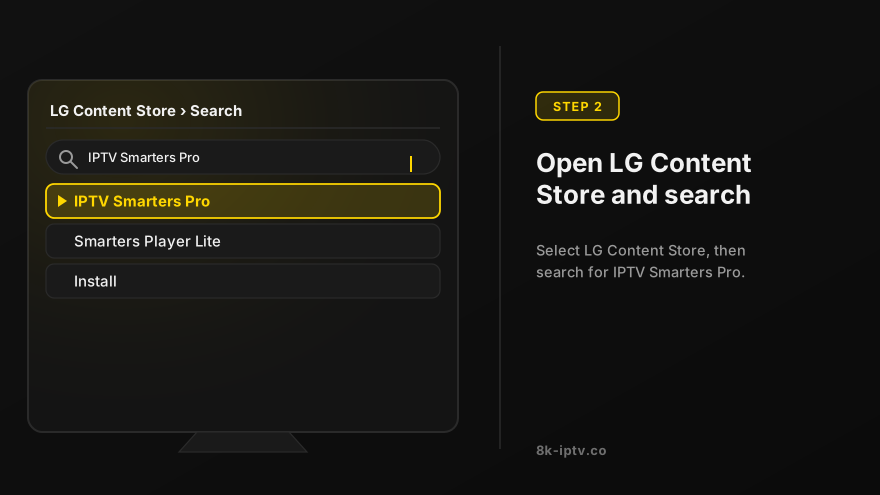
Step 3: Log in the Application with your subscription details i.e. Username, Password, Portal URL.
Note: If you still have issues, please take a photo of your Mac address and device key with your phone and send it to our team via EMAIL: contact@8k-iptv.com or contact us via WhatsApp.
How to setup IPTV on Smart TVs with IBO PLAYER App
IBO PLAYER is an incredible video streaming player which is developed especially for end-users that want to be provided with the facility to watch live TV, VOD, Series and TV Catchup on their Smart TV. This video player app is easy to use and yet highly efficient with a powerful player, attractive and very impressive layout and most importantly user-friendly.
Price: The app gives you a 7 days free trial after that it will show you instructions on how to pay 8€ / Lifetime (we don't own the app).
Compatibility: Compatible With All Devices
For Samsung Smart TV
Step 1: Press the Smart Hub button from your remote.
Step 2: Search for the IBO PLAYER to install.
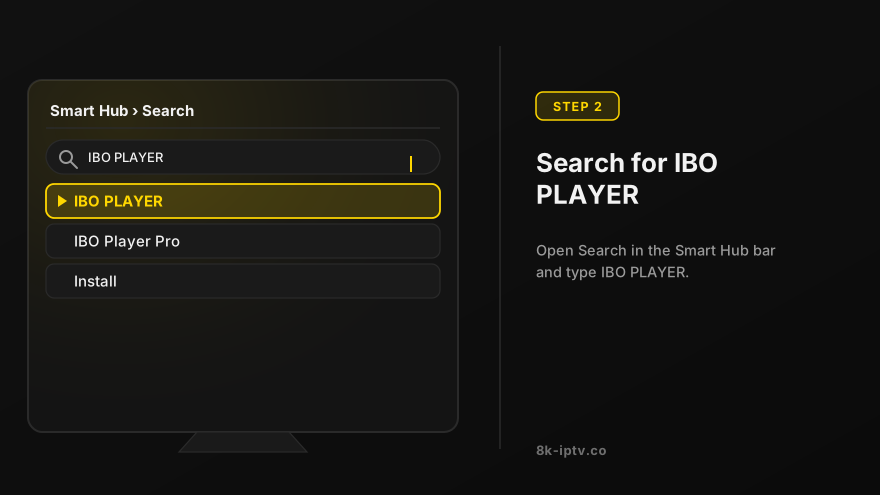
Step 3: Log in the Application with your subscription details i.e. Username, Password, Portal URL.
For LG Smart TV
Step 1: Press the Home button on the remote & Go to LG Content Store.
Step 2: Search for the IBO PLAYER to install.
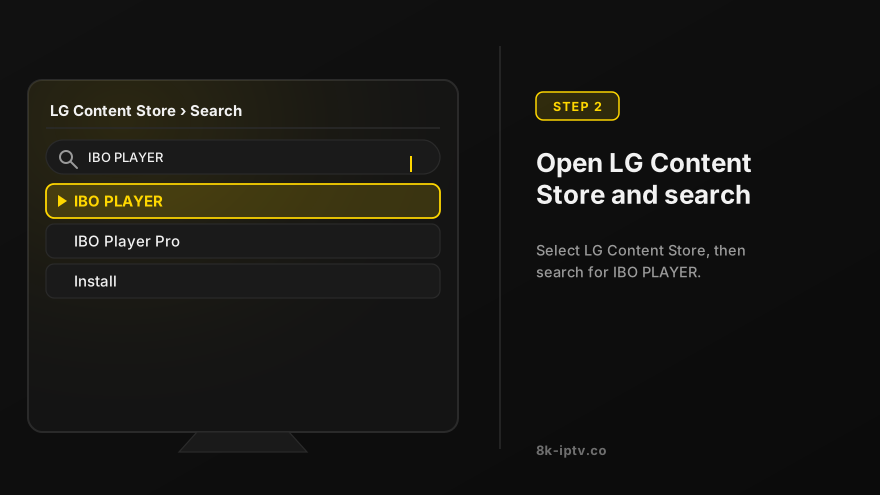
Step 3: Log in the Application with your subscription details i.e. Username, Password, Portal URL.
How to use IBO player app
1 – Once the application is installed, launch it to get its mac address and Key.
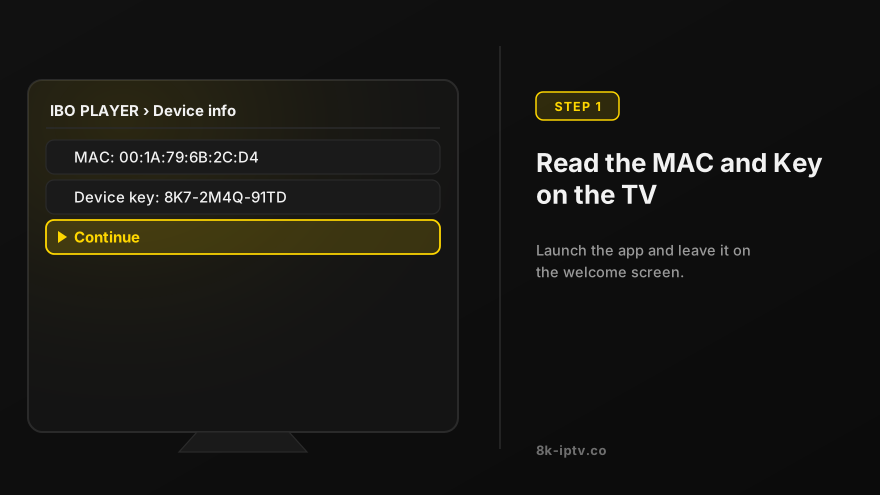
2 – Click on this link to go to the application website: https://iboplayer.com/device/login
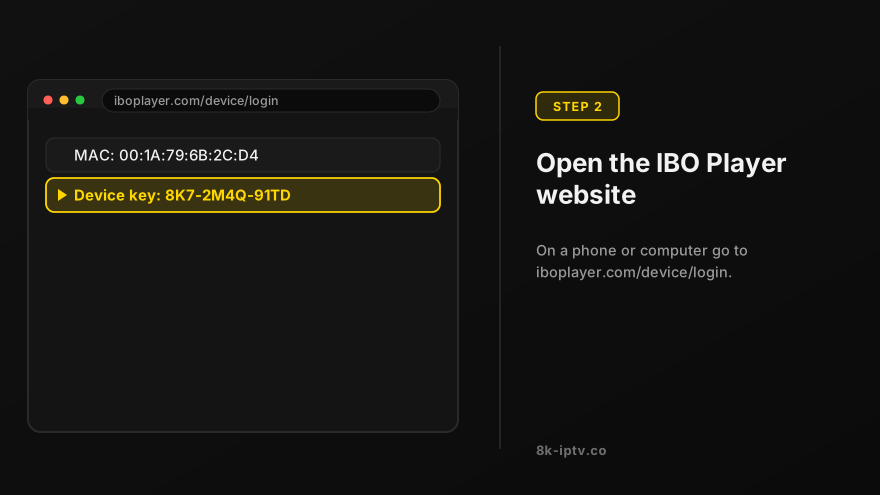
3 – Enter the information displayed on your TV in the appropriate fields (mac and Key) to connect to your application.
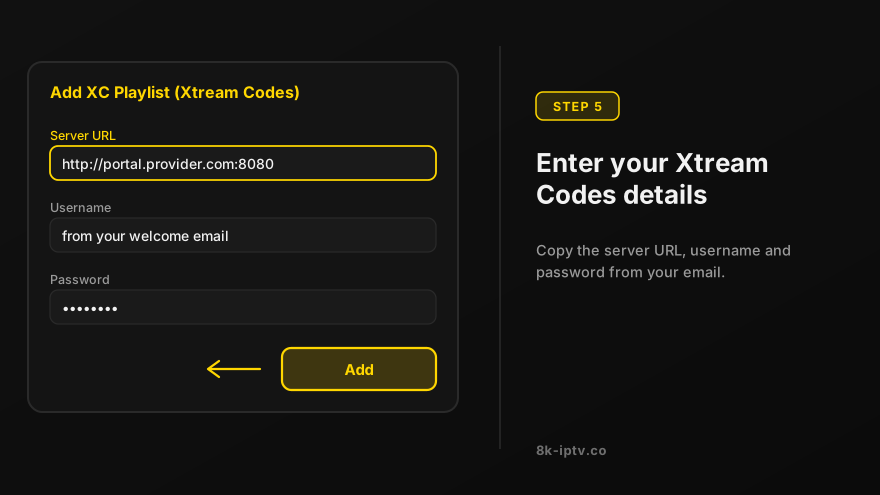
4 – Once connected, you have two methods of setup, either with m3u link (+Add Playlist) or with Xtream codes details (+Add XC Playlist).

5 – Here is how to integrate your m3u link if you click on +Add Playlist.
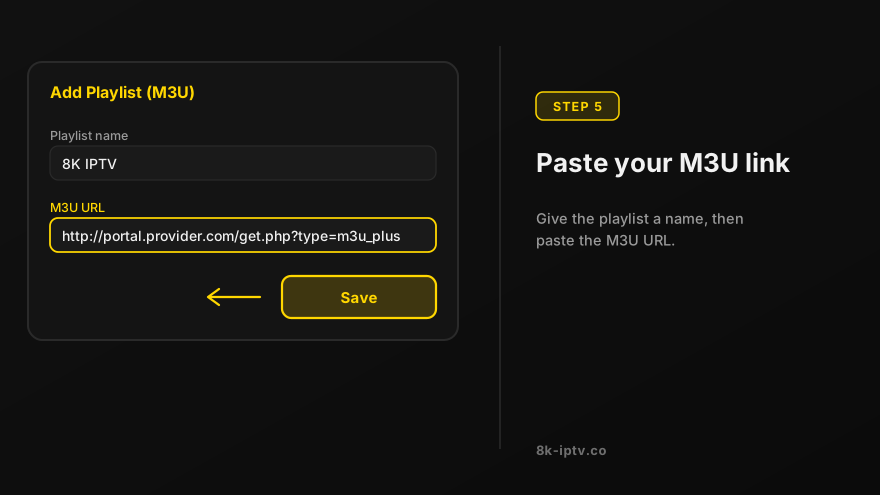
And here's how to use Xtream codes details:
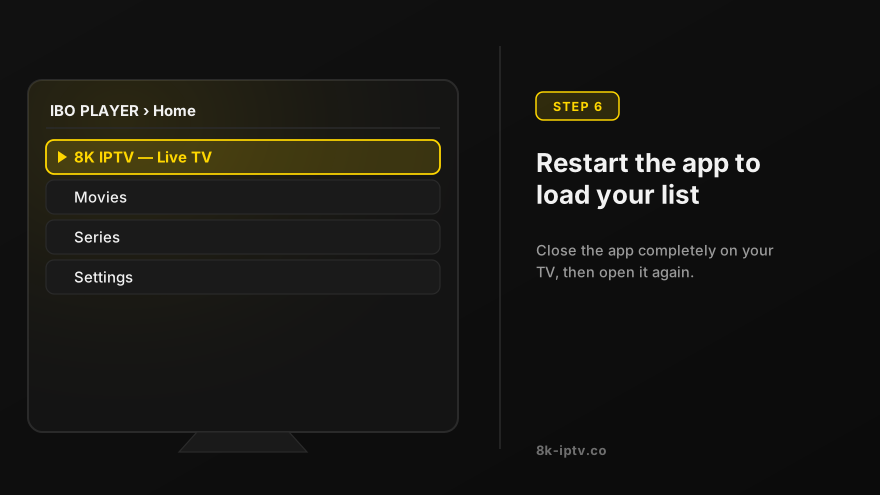
6 – As a last step, it only remains to return to your TV and restart the app so that it loads and displays the list with the name given on its website.
Note: If you still have issues, please take a photo of your Mac address and device key with your phone and send it to our team via EMAIL: contact@8k-iptv.com or contact us via WhatsApp.
Related Setup Guides
Guides for the devices closest to this one: IPTV Smarters Pro on Smart TV, Android, iOS and Fire Stick, Fire TV Stick setup, 8K Player VIP on Fire TV and Android, IBO Player activation on Smart TV and Fire Stick. If your device is not listed, start with the full IPTV setup guide, which links to all of them.